Running Tasks
Once you've defined some tasks and registered them on a worker, you're ready to run them!
Hatchet lets you run tasks in a number of ways, which support different application needs. In broad strokes, these are fire-and-wait, various forms of fire-and-forget-style triggering, and scheduling tasks to run either periodically or at some specific time in the future.
Fire-and-wait
Fire-and-wait is a common way of triggering a task which blocks until it completes and returns a result. This is particularly useful for situations where you want to do something with the result of your task. For instance, if your task generates some LLM output which you want to return to the user or persist in the database, you might trigger a task, wait for it to complete, collect its result, and then continue on with your application logic.
Call run or aio_run on a Task or Workflow object to invoke it. These methods block until the task or workflow completes and return the result.
from examples.child.worker import SimpleInput, child_taskchild_task.run(SimpleInput(message="Hello, World!"))The run methods in Hatchet's Python SDK also have async flavors you can await. These are prefixed with aio_, such as aio_run.
result = await child_task.aio_run(SimpleInput(message="Hello, World!"))Note that the type of input here is a Pydantic model that matches the input schema of the task or workflow being triggered.
The sync run method polls for completion every 1 second by default. Configure the interval with ClientConfig.sync_result_poll_interval or the HATCHET_CLIENT_SYNC_RESULT_POLL_INTERVAL environment variable. The minimum is 1 second. aio_run waits on a listener and is not affected.
Fire-and-forget
On the other hand, fire-and-forget-style triggering enqueues a task without waiting for the result. This is useful for background jobs like sending emails, processing uploads, or kicking off long-running pipelines where the application does not need to wait for the result to continue along.
Call run with wait_for_result=False on a Task or Workflow object to enqueue it fire-and-forget. This returns a WorkflowRunRef you can use to access the run ID and result later.
ref = say_hello.run(input=HelloInput(name="World"), wait_for_result=False)There's also an async flavor:
ref = await say_hello.aio_run( input=HelloInput(name="Async World"), wait_for_result=False)Note that the type of input here is a Pydantic model that matches the input schema of the task.
When running a task fire-and-forget-style, you can also always retrieve the result later on. The workflow run ref that's returned from these trigger methods has a result method, which lets you retrieve the result of the triggered task if you need it later.
Use ref.result() to block until the result is available:
or await aio_result:
result() uses the same poll interval as sync run. Pass poll_interval to override it for a single call. aio_result waits on a listener and is not affected.
Triggering from events
Another method of running tasks fire-and-forget style is via pushing events to Hatchet. If a task is configured to be triggered by an event, then when the event is pushed to Hatchet, a corresponding run will be triggered using the payload of the event as the input to the run.
You can push events to Hatchet directly using the SDKs, or via webhooks, which are converted into Hatchet events internally on ingestion.
Crons
Another common way to run tasks is on a cron schedule, which Hatchet supports natively. Crons are useful for running tasks that are expected to run at the same time every day, such as data processing pipelines, reconciliation jobs, and so on.
Note that Hatchet supports second-level cron granularity, although in most cases using the minutes as the most granular level is perfectly fine.
Scheduled runs
Finally, Hatchet also supports scheduling a run to be triggered at a specific time in the future. This is particularly useful for situations where you want to wait a known amount of time before running some task, such as sending a follow up email or a welcome email to a new user, or allowing your customers to choose when they want something to run, such as sending a reminder, for instance.
Triggering from the dashboard
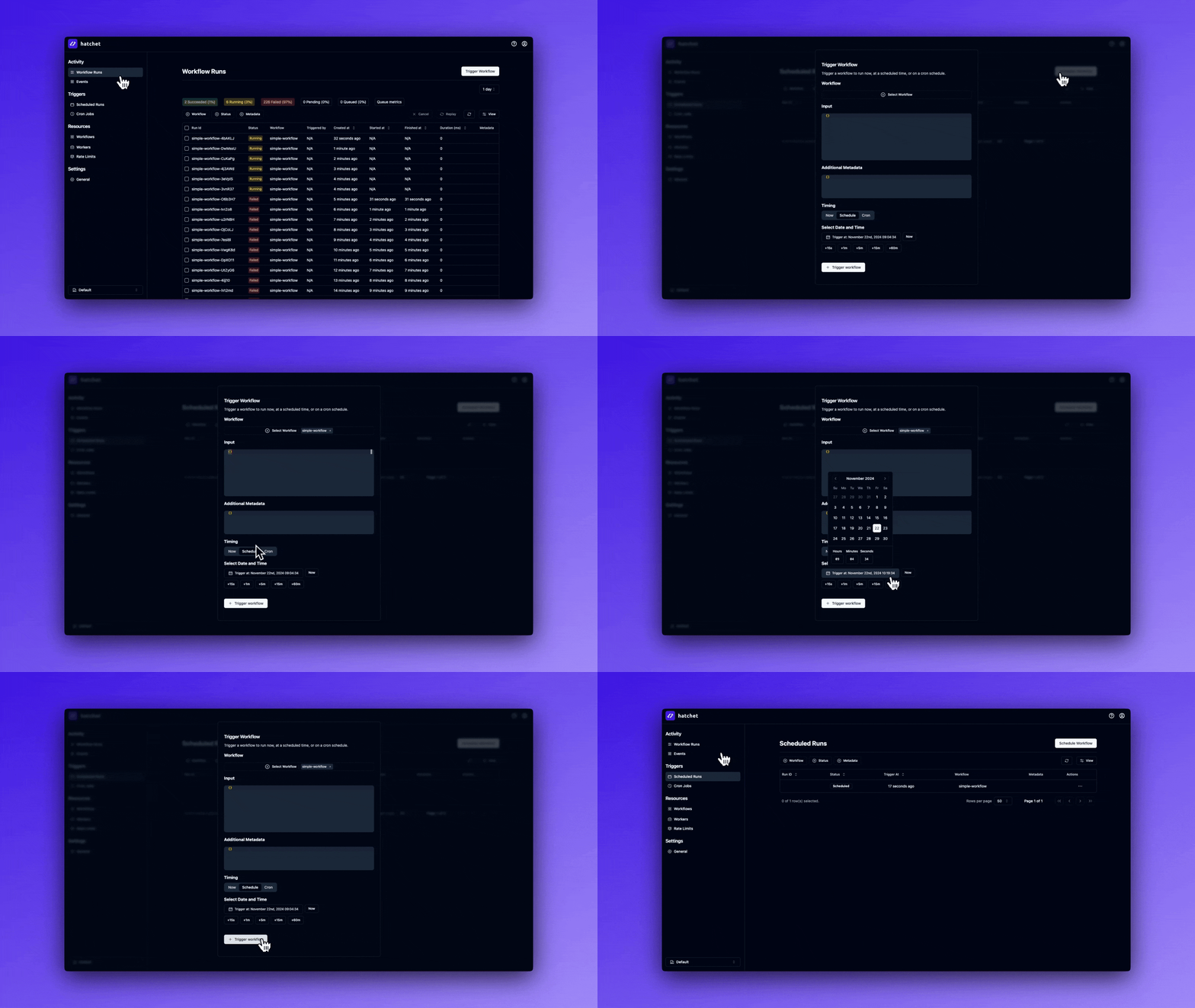
Finally, there are a number of pages in the dashboard that have a Trigger Run button. You can provide run parameters such as input, additional metadata, and a scheduled time.
Last updated on October 14, 2026