Pausing Workflows
Pausing a workflow stops new runs of that workflow from starting. Use it when you need to halt a workflow temporarily without deleting its triggers or cancelling work that is already running.
Workflow pause is different from worker pause. Pausing a worker stops that worker from picking up new tasks. Pausing a workflow applies to one workflow across every worker.
What happens while a workflow is paused
- In-flight runs keep running. Pause does not cancel or interrupt tasks that have already started.
- New runs do not start. Event and manual triggers still create runs, but those runs stay queued until you unpause, or until the queue TTL expires. Cron and scheduled triggers can instead skip creating a run entirely (see below).
- Other workflows are unaffected. Workers keep running other workflows as usual.
Cron and scheduled runs
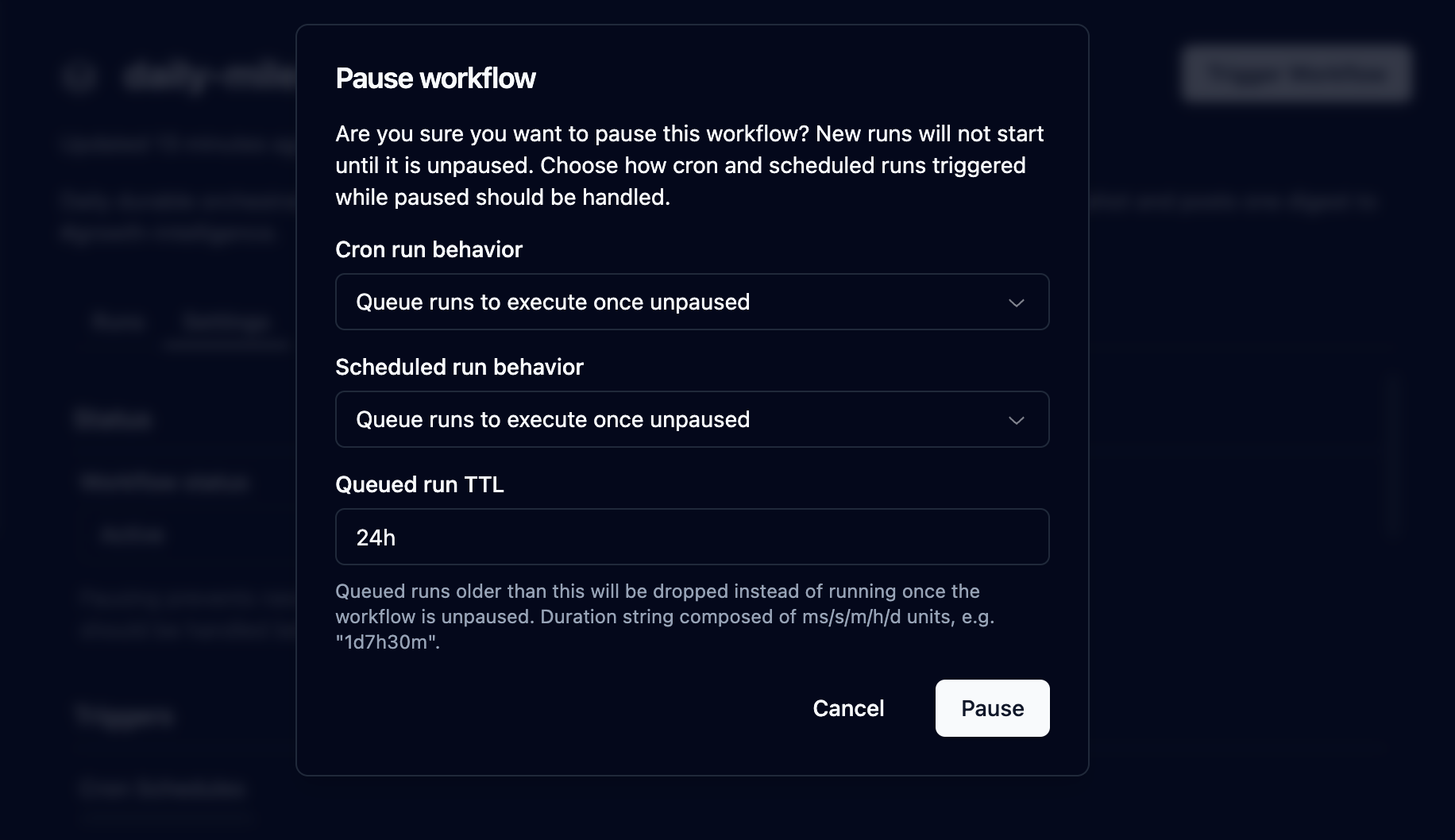
When you pause, you choose how cron and scheduled triggers behave while the workflow is paused:
| Behavior | Effect |
|---|---|
| QUEUE | The trigger still creates a run. The run stays queued and starts after you unpause, unless the queue TTL expires first. |
| DROP | The trigger is skipped. No run is created for that cron tick or schedule while the workflow is paused. |
Cron and scheduled behavior are set independently. Event-triggered and manually triggered runs always queue while the workflow is paused; they are not controlled by these settings.
Queue TTL
Queued runs waiting on a paused workflow have a TTL. If a run is still queued when its age exceeds the TTL, Hatchet cancels it. The dashboard defaults this to 24h. Duration strings use the same format as timeouts (for example 30m or 24h).
Unpausing
Unpausing clears the pause settings and requeues runs that are still waiting. Runs that already expired under the TTL stay cancelled.
From the dashboard
- Open the workflow.
- Go to the Settings tab.
- Under Workflow status, choose Paused.
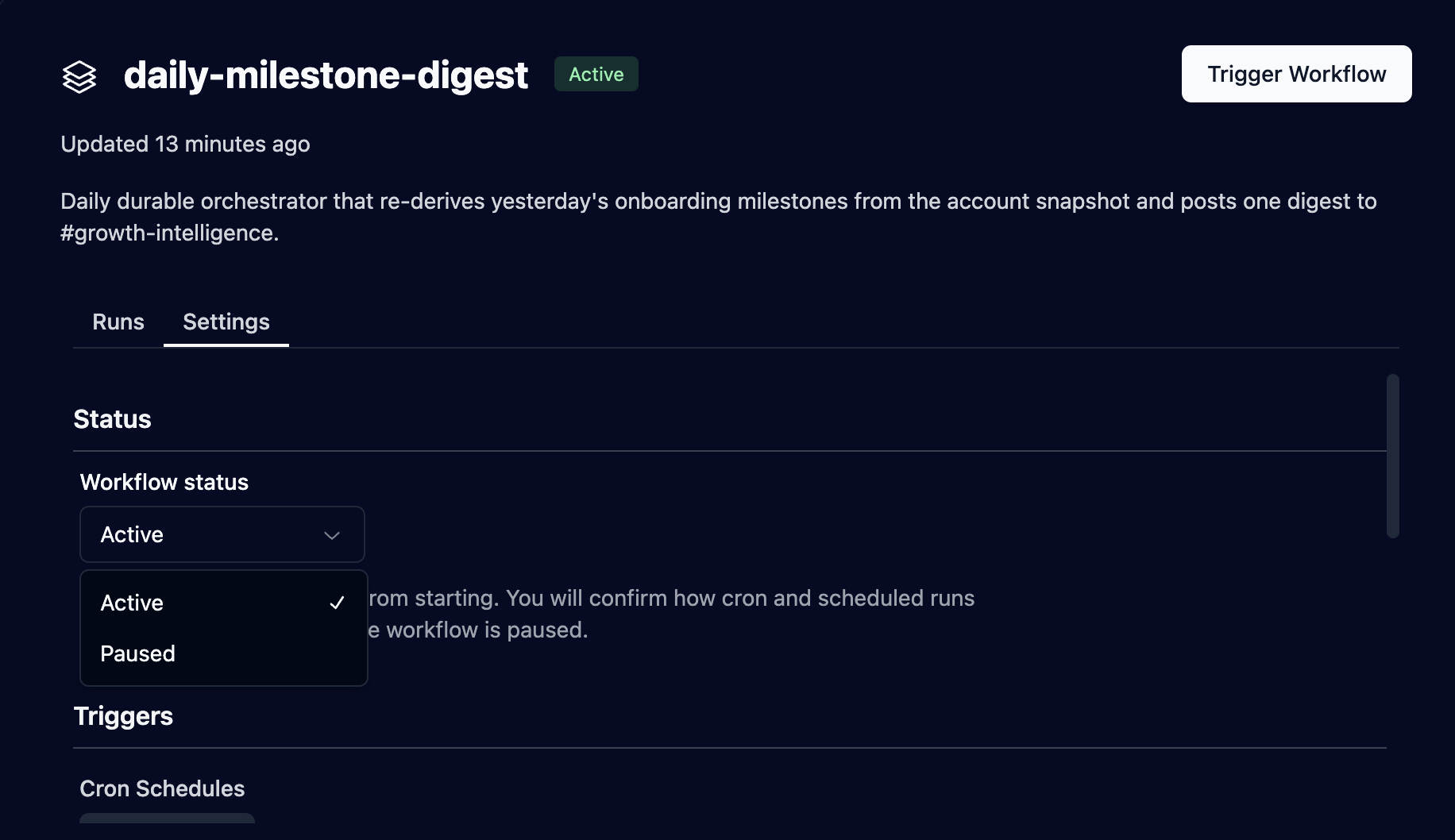
- Confirm and set cron behavior, scheduled behavior, and queue TTL.
- To resume, set Workflow status back to Active and confirm.
From the SDKs
Pausing requires a queue TTL. Cron and scheduled behavior both default to QUEUE.
pausable_workflow.pause( queue_ttl=timedelta(hours=24), paused_workflow_cron_run_queue_behavior="DROP", paused_workflow_scheduled_run_queue_behavior="QUEUE",)You can also pause and unpause through the workflows client instead of a workflow object: hatchet.workflows.pause(...) in Python, TypeScript and Ruby, and client.Workflows().Pause(...) in Go. In Python, aio_pause and aio_unpause are the async versions. In Ruby, queue_ttl also accepts an integer number of seconds.
Last updated on October 23, 2026