User Groups
User Groups are only available on Hatchet Custom plans. See pricing for more details.
User groups make granting automatic access to tenants within an organization easier.
Creating a user group
Navigate to Settings > Team, then click on the New Group button.
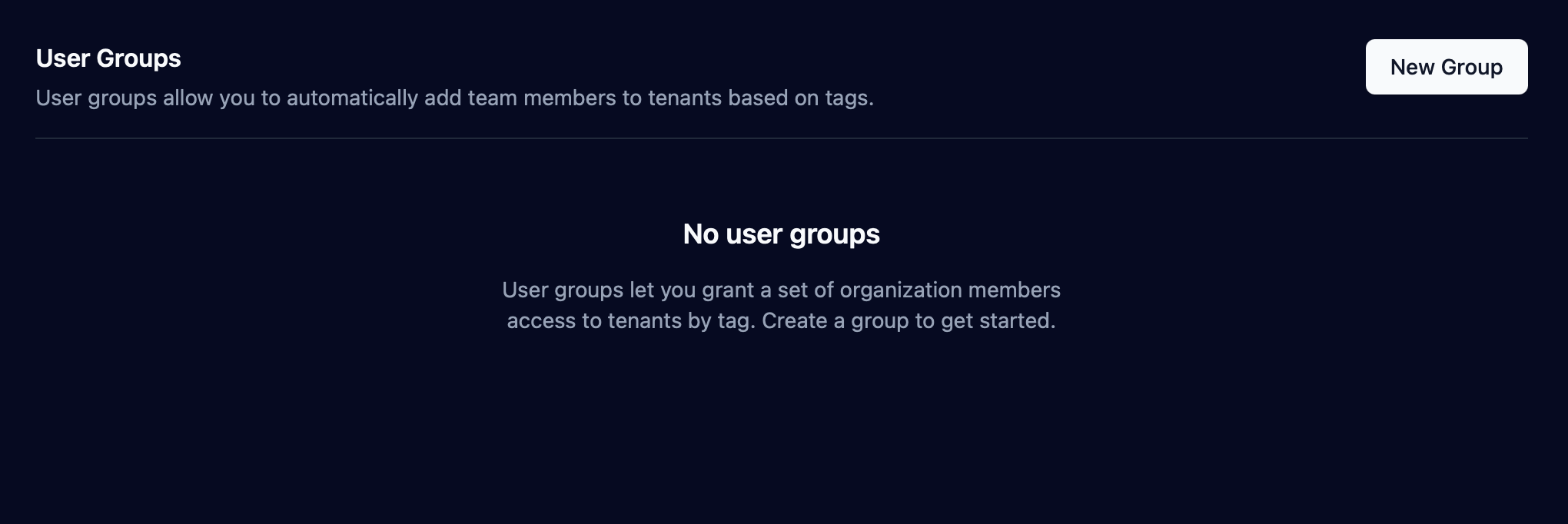
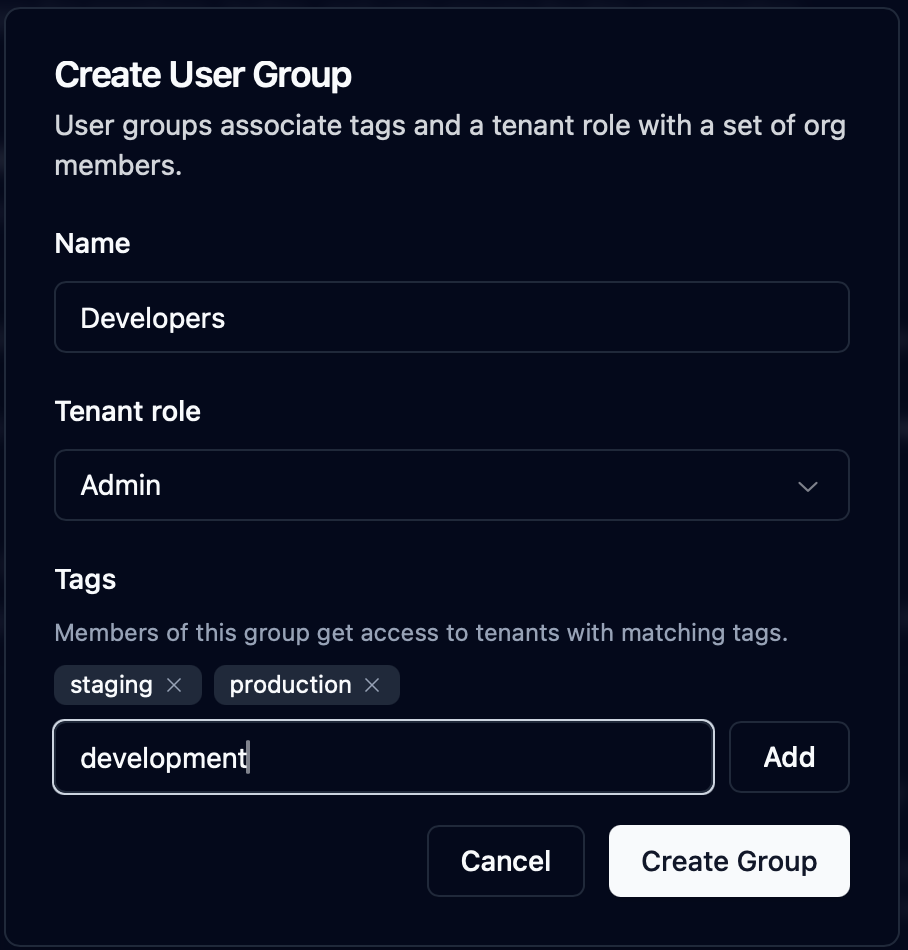
In the modal, input the name for the group, the tenant role that users synced with that group will have, and tags to determine which tenant the user group will be synced to. Groups can also restrict payload visibility for their members; if a user matches multiple groups, the most restrictive group wins.
Adding tags to tenants
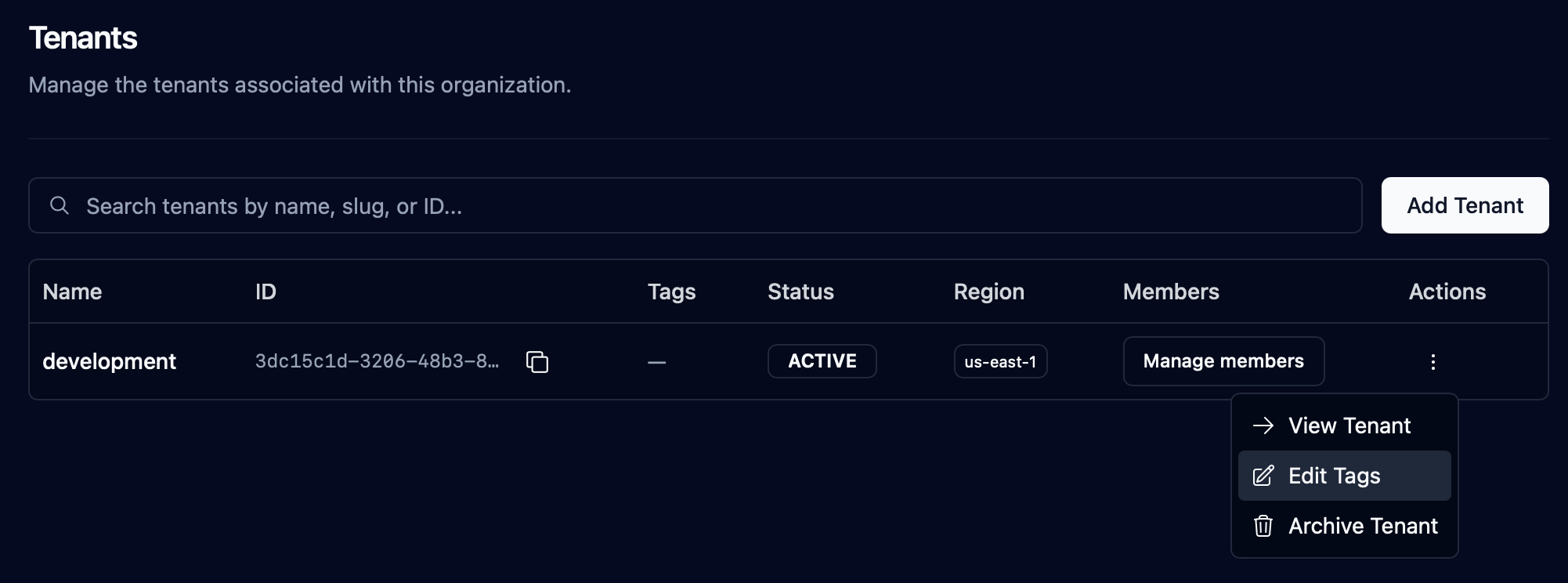
Navigate to the tenants page in Settings, and select "Edit tags" from the dropdown for a tenant.
Add the desired tags.
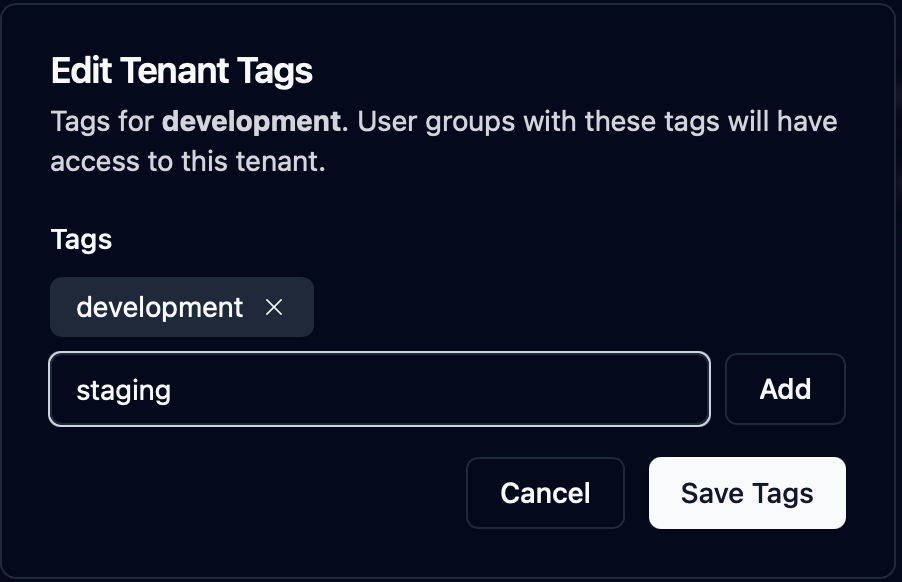
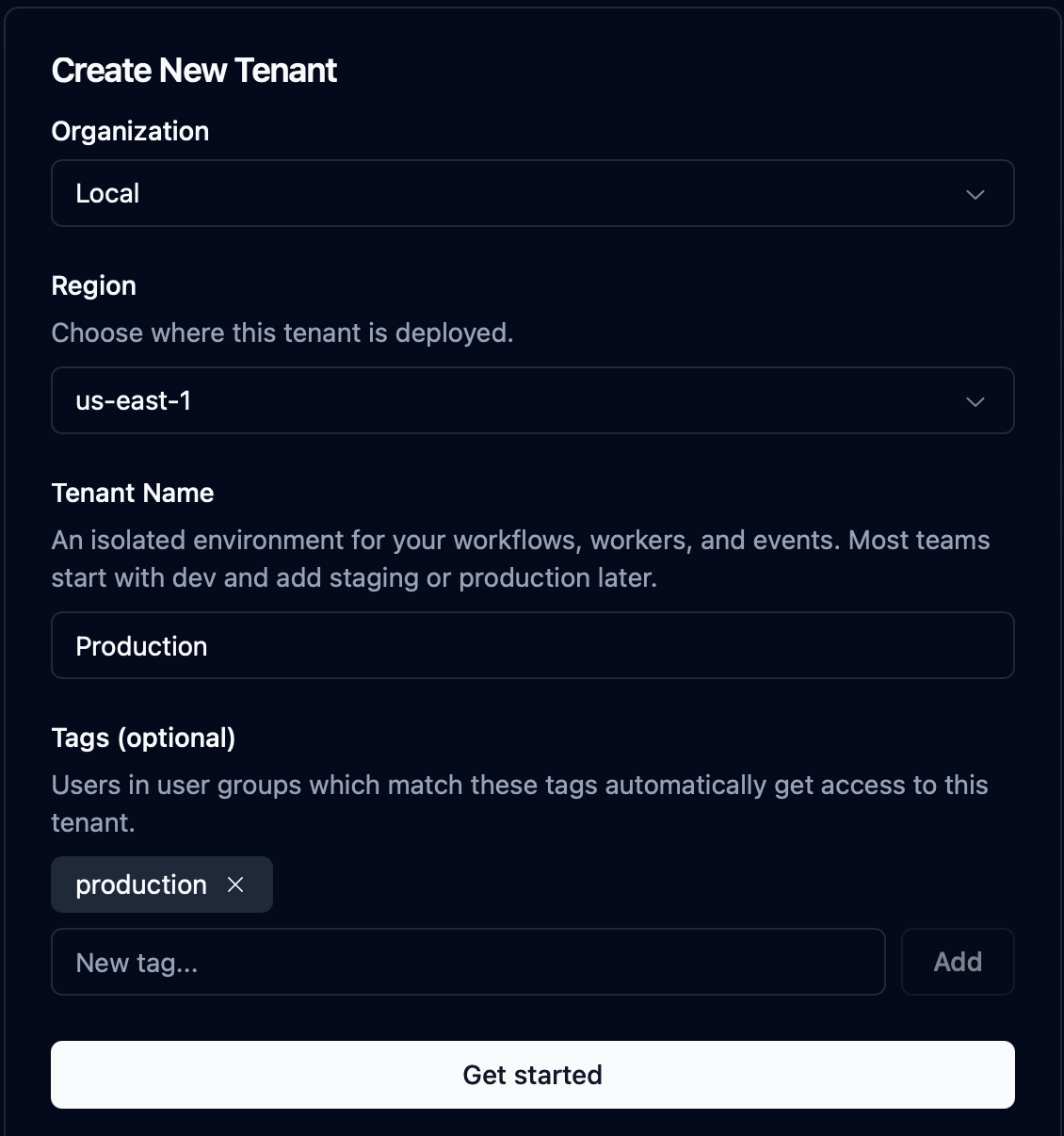
Tags can also be set when creating a new tenant.
Tag Syncing
User groups work by automatically granting access for the users inside the group to tenants that have a subset
of the user group's tags. The diagram below shows an example tenant-user group setup. Three tenants — "Preview" (tagged production and staging), "Production" (tagged
production), and "Staging" (tagged staging) — alongside three user groups with the same tag combinations. Each
tenant lists the users who are synced into it automatically, based on which groups' tags are a superset of its own:
Organization Owners
Organization owners are exempt from the tag-syncing roles, they are added to every tenant in the organization with role "OWNER".
Last updated on October 21, 2026